
📊 Full opportunity report: How to Reduce Heat and Noise in a High-Power AI Workstation on ThorstenMeyerAI.com — validation score, market gap, and execution plan.
TL;DR
High-power AI workstations generate significant heat and noise due to sustained GPU loads. Key methods to reduce these include undervolting GPUs, improving case airflow, and optimizing component cooling. This helps maintain performance while minimizing noise and overheating.
High-power AI workstations produce excessive heat and noise due to continuous GPU loads, making cooling a critical concern for users aiming for quieter operation and better thermal management. Experts recommend targeted strategies like undervolting GPUs and optimizing airflow to mitigate these issues, which are confirmed effective and accessible.
In AI inference workloads, GPUs operate at or near full capacity continuously, unlike gaming PCs that handle bursty loads. This sustained load causes higher heat output and louder fan noise, especially in multi-GPU setups where exhaust recirculation exacerbates thermal buildup. The primary source of heat and noise is the GPU itself, with fans often being the loudest component under load. CPUs and power supplies also contribute to the thermal profile, with power delivery components generating additional heat.
One of the most effective, confirmed methods to reduce heat and noise is undervolting the GPU, which lowers power consumption and thermal output without sacrificing performance in memory-bound inference tasks. Adjusting power limits and improving case airflow are additional strategies that significantly impact thermal management. Experts emphasize starting with source reduction before exploring secondary cooling enhancements, such as liquid cooling or fan replacements.
An AI workstation isn’t a gaming PC —
and that’s why it runs hot.
Local inference is a sustained load: the GPU sits near full power for hours with no loading screens, so the heat never dissipates and the fans never get a break. Here’s where the heat comes from — and the five levers that reduce it.
Impact of Cooling Strategies on AI Workstation Performance
Implementing these cooling and noise reduction techniques allows AI practitioners to operate high-power workstations more quietly and reliably. Better thermal management can prevent throttling, extend hardware lifespan, and improve overall productivity by maintaining consistent performance levels. As AI workloads grow more demanding, these strategies become essential for efficient and sustainable operation.As an affiliate, we earn on qualifying purchases.
Understanding Heat and Noise Sources in AI Workstations
High-power AI workstations differ from gaming PCs in their continuous load profiles. Unlike gaming systems that experience intermittent spikes, inference workloads keep GPUs running at or near maximum capacity for hours, leading to sustained heat generation. Historically, cooling solutions for gaming PCs focus on handling bursty loads, which are insufficient for AI workloads. Modern AI hardware often pulls hundreds of watts per GPU, with dual-GPU systems exceeding 800W total power draw, translating into significant heat that must be effectively dissipated. This background underscores the importance of targeted cooling strategies tailored to continuous load scenarios.
„The key to cooling high-power AI workstations is understanding that the GPU is the main heat source, and optimizing its power draw through undervolting can dramatically reduce noise and temperature.“
— Thorsten Meyer, AI hardware expert
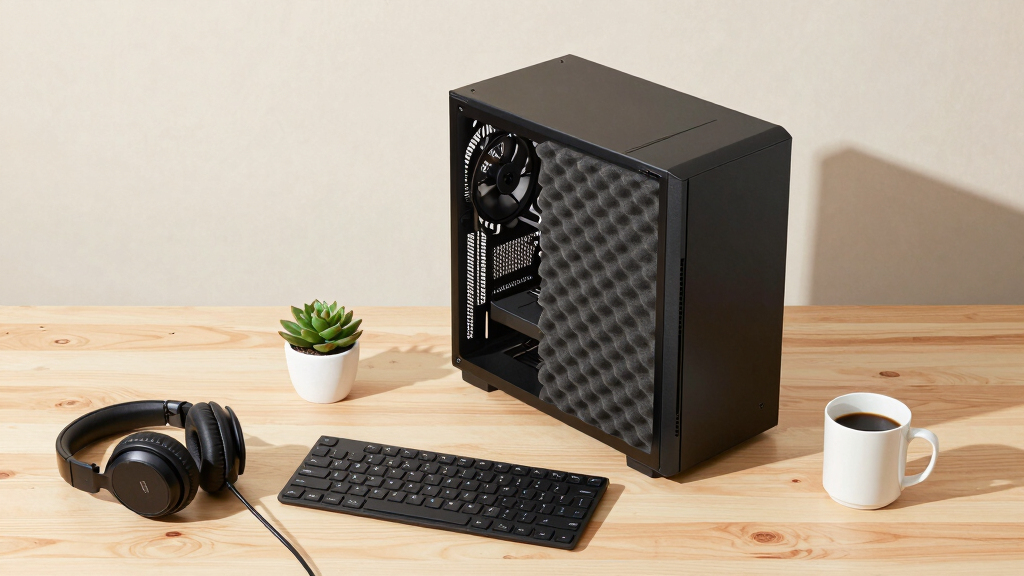
high airflow PC case for AI workstation
As an affiliate, we earn on qualifying purchases.
As an affiliate, we earn on qualifying purchases.
Unresolved Questions on Optimal Cooling Configurations
While undervolting and airflow improvements are proven effective, the optimal settings for different GPU models and case configurations remain variable. The long-term effects of undervolting on hardware stability are still being studied, and some users report inconsistent results. Additionally, the comparative benefits of liquid versus air cooling in these specific workloads are not yet conclusively established, with ongoing experimentation necessary to define best practices.
As an affiliate, we earn on qualifying purchases.
Next Steps for Enhancing AI Workstation Cooling
Future developments include more refined undervolting profiles tailored to specific GPU models and workload types. Manufacturers may release firmware updates to facilitate better thermal management. Users should monitor community feedback and test incremental adjustments to find the most effective cooling setup for their hardware. Additionally, innovations in case design and cooling hardware are expected to further improve noise and temperature performance in high-power AI systems.
liquid cooling system for high-performance PC
As an affiliate, we earn on qualifying purchases.
As an affiliate, we earn on qualifying purchases.
Key Questions
What is the most effective way to reduce GPU heat in an AI workstation?
Undervolting the GPU and capping power limits are the most effective and cost-free methods, significantly lowering heat and noise without impacting performance in memory-bound inference tasks.
Can upgrading cooling hardware improve noise levels?
Yes. Upgrading to high-quality fans, liquid cooling solutions, or improving case airflow can further reduce operating temperatures and fan noise, especially in high-load scenarios.
Does liquid cooling offer a significant advantage over air cooling for AI workloads?
The benefits depend on case design and workload; liquid cooling can provide lower temperatures and quieter operation but involves higher cost and complexity. Its effectiveness varies across configurations.
Are there risks associated with undervolting GPUs?
While generally safe when done within manufacturer-recommended parameters, undervolting can cause stability issues if settings are too aggressive. Testing incrementally is advised.
What should I do if my workstation still runs hot despite these measures?
Evaluate case airflow, consider upgrading cooling components, and consult manufacturer guidelines for specific GPU models. Professional assistance may be necessary for persistent issues.
Source: ThorstenMeyerAI.com